
코린이 탈출기
chapter 8.4 - 방 목록 보여주기 (3) - Serializable을 활용한 방 상세보기 본문
chapter 8.4 - 방 목록 보여주기 (3) - Serializable을 활용한 방 상세보기
50HEE 2021. 5. 24. 20:47이전까지는 방 목록만 보여주었다면 이번에는 목록을 눌러서 상세 화면으로 넘어가는 방법을 보겠습니다.
넘어갈 화면을 새로 작성하는 것이기 때문에 새로운 액티비티를 만듭니다.
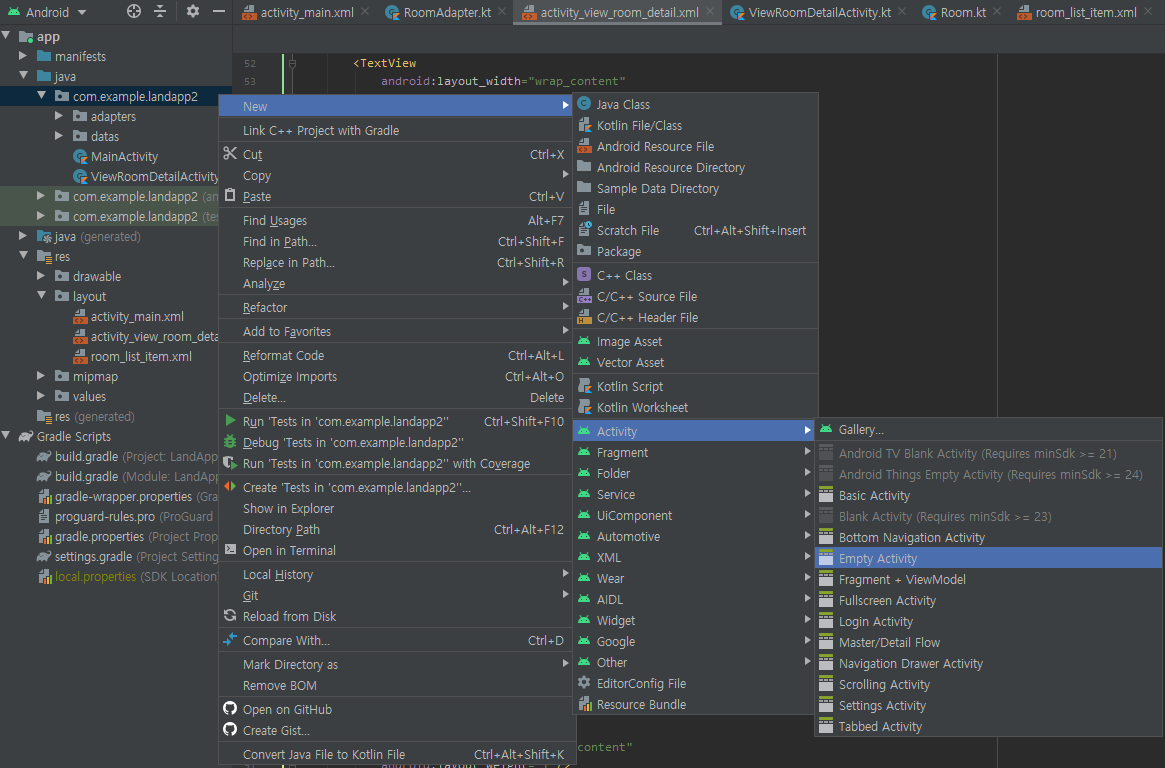
액티비티의 이름을 작성 시 카멜 표기법을 주의해주세요.
2021.04.22 - [안드로이드/클래스101 - 비전공자들을 위한 나만의 안드로이드 앱 만들기] - chapter 4.4 - 코드 깔끔하게 작성하기 - 카멜 표기법
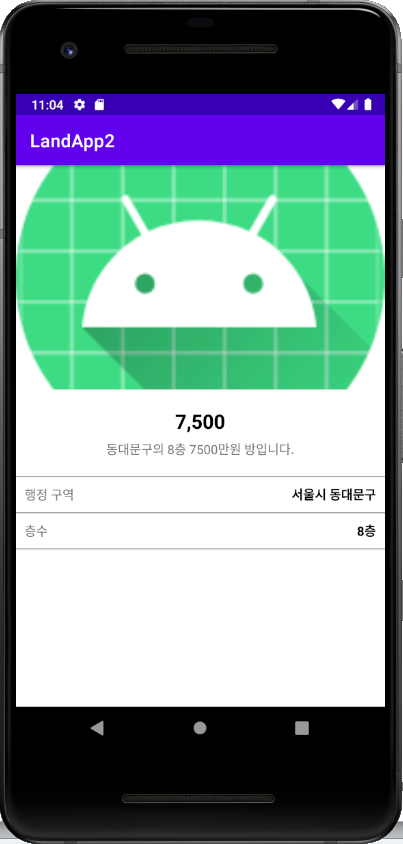
넘어갈 화면의 xml을 그려보겠습니다.
코드를 작성하는 곳은 activity_view_room_detail.xml입니다.
<LinearLayout xmlns:android="http://schemas.android.com/apk/res/android"
    xmlns:app="http://schemas.android.com/apk/res-auto"
    xmlns:tools="http://schemas.android.com/tools"
    android:layout_width="match_parent"
    android:layout_height="match_parent"
    tools:context=".ViewRoomDetailActivity"
    android:orientation="vertical">

    <ImageView
        android:layout_width="match_parent"
        android:layout_height="250dp"
        android:src="@mipmap/ic_launcher"
        android:scaleType="centerCrop"/>

    <LinearLayout
        android:layout_width="match_parent"
        android:layout_height="wrap_content"
        android:orientation="vertical"
        android:gravity="center"
        android:padding="20dp">

        <TextView
            android:id="@+id/priceTxt"
            android:layout_width="wrap_content"
            android:layout_height="wrap_content"
            android:text="2억 8,500"
            android:textColor="@color/black"
            android:textStyle="bold"
            android:textSize="22sp"/>

        <TextView
            android:id="@+id/descriptionTxt"
            android:layout_width="wrap_content"
            android:layout_height="wrap_content"
            android:text="방에 대한 설명"
            android:layout_marginTop="7dp"/>

    </LinearLayout>

    <TextView
        android:layout_width="match_parent"
        android:layout_height="1dp"
        android:background="#a0a0a0"/>

    <LinearLayout
        android:layout_width="match_parent"
        android:layout_height="wrap_content"
        android:orientation="horizontal"
        android:padding="10dp">

        <TextView
            android:layout_width="wrap_content"
            android:layout_height="wrap_content"
            android:text="행정 구역"/>

        <TextView
            android:layout_width="0dp"
            android:layout_height="wrap_content"
            android:layout_weight="1"/>

        <TextView
            android:id="@+id/addressTxt"
            android:layout_width="wrap_content"
            android:layout_height="wrap_content"
            android:text="서울시 동대문구"
            android:textColor="@color/black"
            android:textStyle="bold"/>

    </LinearLayout>

    <TextView
        android:layout_width="match_parent"
        android:layout_height="1dp"
        android:background="#a0a0a0"/>

    <LinearLayout
        android:layout_width="match_parent"
        android:layout_height="wrap_content"
        android:orientation="horizontal"
        android:padding="10dp">

        <TextView
            android:layout_width="wrap_content"
            android:layout_height="wrap_content"
            android:text="층수"/>

        <TextView
            android:layout_width="0dp"
            android:layout_height="wrap_content"
            android:layout_weight="1"/>

        <TextView
            android:id="@+id/flootTxt"
            android:layout_width="wrap_content"
            android:layout_height="wrap_content"
            android:text="1 층"
            android:textColor="@color/black"
            android:textStyle="bold"/>

    </LinearLayout>

    <TextView
        android:layout_width="match_parent"
        android:layout_height="1dp"
        android:background="#a0a0a0"/>

</LinearLayout>
코드의 경우 자세하게 따로 설명을 하지 않겠습니다.
중간중간 회색 선 같은 경우에는 TexView를 이용하여 높이를 1dp로 설정했습니다.
그리고 백그라운드에 회색을 넣어 선처럼 표현하였습니다.
  <TextView
        android:layout_width="match_parent"
        android:layout_height="1dp"
        android:background="#a0a0a0"/>
각 목록을 클릭 시 상세 화면으로 이동하는 코드를 작성하겠습니다.
코드를 작성하는 곳은 MainActivity.kt입니다.
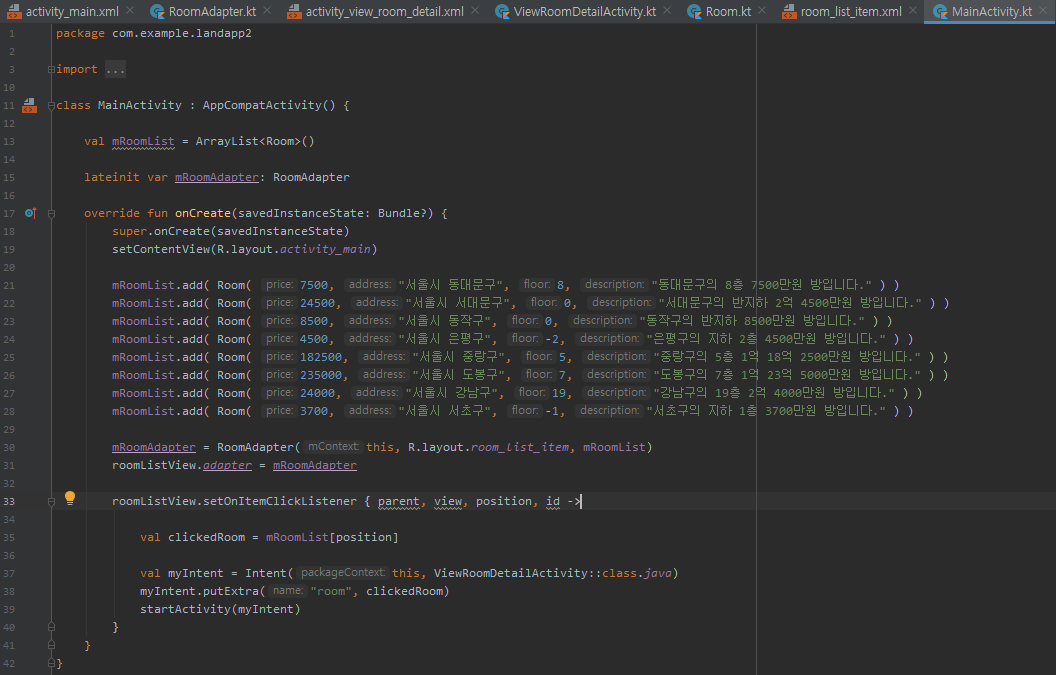
목록을 클릭하는 것이기 때문에 setOnItemClickListener 함수를 이용하겠습니다. 33줄과 같습니다.
35번 줄과 같이 각 줄에 맞게 눌렀을 때의 방들을 변수로 설정하였습니다.
화면이 넘어갈 차례입니다.
2021.05.03 - [안드로이드/클래스101 - 비전공자들을 위한 나만의 안드로이드 앱 만들기] - chapter 5.4 - 화면 간 데이터 전달 - Intent 활용
우선 37번 줄과 같이 화면의 출발지와 도착지를 변수로 만들었습니다.
정보를 가져가기 위해 38번 줄과 같이 작성하였습니다.
마지막으로 39번 줄과 같이 출발지를 작성할 것입니다.
여기까지 따라오셨다면 아마 38번 줄에 에러가 발생할 것입니다.
그 이유는 위에 설정한 clickedRoom의 변수는 mRoomList의 모든 정보를 가져온다는 뜻으로 작성한 것입니다.
기존에는 하나하나 작성하여 옮겼습니다. 그런데 만약 옮길 변수가 많을 경우 그걸 하나하나 작성하는 것이 힘들 것입니다.
이를 좀 더 쉽게 작성하는 것이 Serializable입니다. 즉, 클래스 통째로 옮기는 것입니다.
방법은 원하는 데이터 클래스의 선언문에서 상속을 받는 것처럼 Serializable을 구현하는 것입니다.
class 클래스 명 (): Serializable { }
코드를 작성하는 곳은 Room.kt입니다.
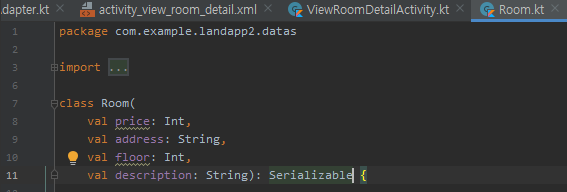
한 번에 옮기고 싶은 클래스가 있다면 그 클래스로 가서 클래스 명 또는 만약 생성자가 있다면 생성자가 끝난 후 Serializable을 상속합니다. 11번 줄과 같습니다.
그러고 나서 다시 돌아가면 에러가 사라집니다.
이제 마지막으로 상세 화면으로 이동해서 정보를 대입시켜줄 차례입니다.
코드를 작성하는 곳은 ViewRoomDetailActivity.kt입니다.

14줄은 방 정보를 가져오기 위해 변수를 설정합니다.
원래는 intent.get타입Extra("이름표")로 작성하였습니다.
하지만 넣어준 것이 Serializable 이어서 꺼내 줄 때도 Serializable로 꺼내 주어야 합니다.
이때 사용하는 것은 Room의 데이터이기 때문에 as로 원하는 클래스를 바꾸어주어야 합니다.
기본 클래스가 아니라 우리가 만든 클래스기 때문에 as를 사용해야 합니다.
2021.05.18 - [안드로이드/클래스101 - 비전공자들을 위한 나만의 안드로이드 앱 만들기] - chapter 7.5 - 타입 변환 - casting
as로 클래스를 선언해주면 16 ~ 19줄과 같이 Room의 데이터들을 끌어와서 사용할 수 있습니다.
주의할 점은 id 설정 시 이름을 똑같이 사용할 경우 어디의 id를 사용할 것인지 잘 보고 선택해주어야 합니다.
'인터넷 강의 > 클래스101 - 비전공자들을 위한 나만의 안드로이드 앱 만들기' 카테고리의 다른 글
| chapter 9.2 - manifest - 앱 정보사항 관리 (0) | 2021.05.25 |
|---|---|
| chapter 9.1 - mipmap - 앱 아이콘 제작 (0) | 2021.05.25 |
| chapter 8.3 - 천 단위 콤마(,) 찍기 + 구글링 방법 (0) | 2021.05.24 |
| chapter 8.2 - 방 목록 보여주기 (2) - 함수, 알고리즘을 활용한 데이터 출력 (0) | 2021.05.24 |
| chapter 8.1 - 부동산 앱 화면 따라 만들기 (1) - 기초 화면 작성 (0) | 2021.05.24 |


